

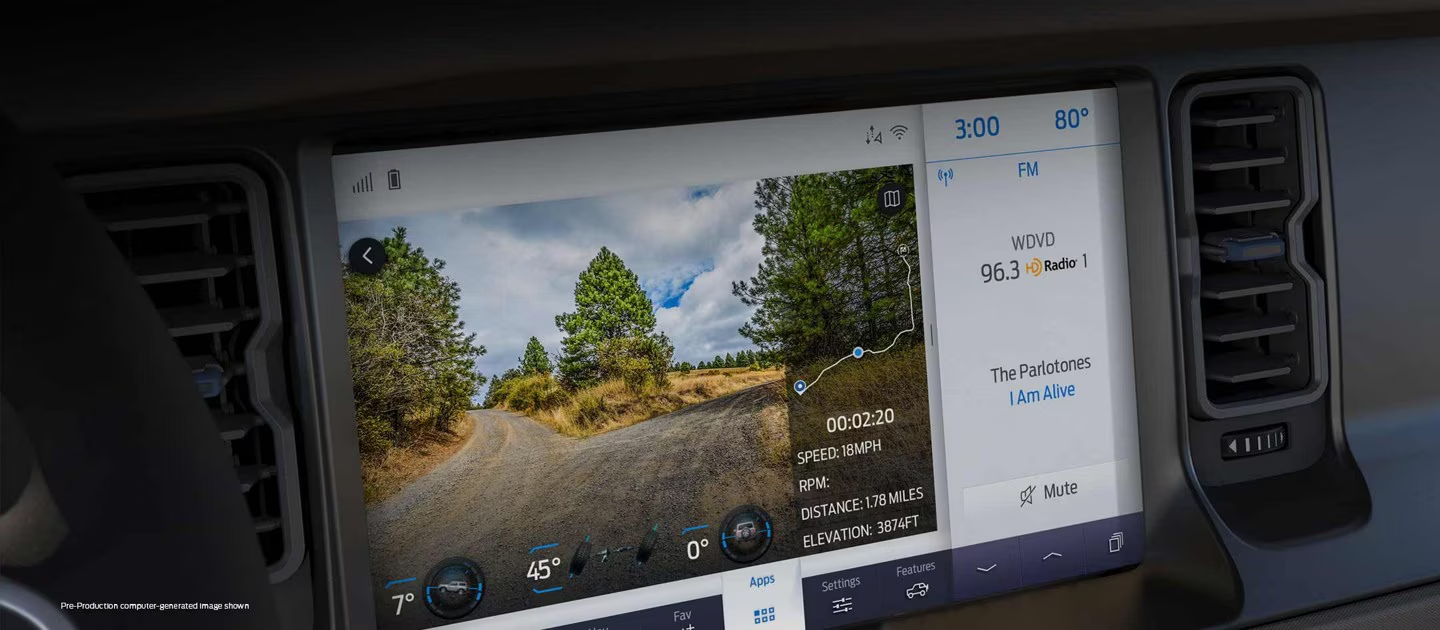
How to Connect Your Phone to Ford SYNC 4
Posted at Mon, Dec 22, 2025 5:15 PM
<p><strong>Ford SYNC 4 technology</strong> allows you to sync your smartphone to your vehicle's infotainment system. It uses enhanced voice recognition, allowing you to make calls, send texts, stream your favorite music, and access cloud-based navigation using simple, intuitive voice commands.</p>
<p>Connecting and using your smartphone with SYNC 4 is straightforward. Follow these simple Bluetooth setup steps, and in minutes, you'll be playing your favorite music, making calls, and accessing your top apps hands-free. If you're having trouble getting set up, Stivers Ford of Birmingham can help. <strong><a href="https://stiversfordofbirmingham.com/general-contact">Contact our service department</a></strong>, and one of our friendly staff members will assist you.</p>
<h2 style="text-align: left;">Step-by-Step Guide to Pairing Your Phone via Bluetooth</h2>
<p style="text-align: center;"><img src="https://images.remorainc.com/uploads/qar/a/H72nagUQYSpdl6rxHMVH_HorizontalQuietCard.avif.png" alt="connect phone to Ford SYNC 4" caption="false" /></p>
<h3>Whether you use an Apple iPhone or an Android model, pairing your smartphone is easy; just follow these steps:</h3>
<p><strong>Step 1:</strong> Enable Bluetooth on your smartphone. Typically, you'll find this under your settings button. Consult your owner's manual or the manufacturer's website, as instructions can vary by device.</p>
<p><strong>Step 2:</strong> Tap the Settings button on your Ford SYNC 4 screen in your vehicle.</p>
<p><strong>Step 3:</strong> Select Add a Phone on your SYNC 4 screen and follow the prompts. Once you've completed the prompts, the SYNC 4 system will simultaneously display a code and send a matching code to your smartphone.</p>
<p><strong>Step 4:</strong> After verifying the codes match, select the option to pair, and you're done. You've successfully paired your smartphone and can begin using it.</p>
<p>Note: If the code does not match, repeat the pairing steps from the beginning until you see matching codes.</p>
<h2>Step-by-Step Guide to Pairing Your Non-phone via Bluetooth</h2>
<p>You can also pair a non-phone Bluetooth-enabled device like an iPad or tablet. Here's a simple guide on how to do so:</p>
<p><strong>Step 1:</strong> Enable Bluetooth on your device. If you need assistance, refer to your owner's manual or the manufacturer's website for model-specific instructions.</p>
<p><strong>Step 2:</strong> Tap the Settings button on your vehicle's SYNC 4 screen.</p>
<p><strong>Step 3:</strong> Press the Connectivity button.</p>
<p><strong>Step 4:</strong> Select Bluetooth.</p>
<p><strong>Step 5:</strong> Choose Add a Bluetooth Device, and a prompt on the iPad or tablet will alert you to search for your vehicle.</p>
<p><strong>Step 6:</strong> Select your vehicle on your device, and a passcode will simultaneously display on your SYNC 4 screen and your device.</p>
<p><strong>Step 7:</strong> Confirm the code on your SYNC 4 screen matches the code on your device, select the option to pair, and you're done. Your SYNC 4 screen will display a confirmation message that your device is paired.</p>
<p>Note: If the codes don't match, repeat the pairing steps from the beginning until they do.</p>
<h2>Using an iPhone with Ford SYNC 4</h2>
<p>Your new Ford vehicle comes with Apple CarPlay preinstalled. Once paired, you can use compatible iPhone apps on your phone through the SYNC 4 interface in your vehicle. You can pair two phones to the Bluetooth system at once, but only one phone can use Apple CarPlay at a time. Your favorite iPhone assistant, Siri, is now ready to use. </p>
<p>You can press the Voice button on your steering wheel or use the standard "Hey Siri" activation phrase to wake Siri. Ford SYNC 4 also has its voice command system. Simply press the Voice button and follow the prompts to set up.</p>
<p>Using Apple CarPlay, you can stream your favorite music from playlists on your phone, Spotify, and other compatible apps. If you choose not to use CarPlay, your SYNC 4 system can still stream music from your device.</p>
<h2>How to Use an Android Phone with Ford SYNC 4</h2>
<p>Your new Ford vehicle has Android Auto capability installed at the factory. Depending on your vehicle's model, you might need a USB connection for full functionality. Once your Android phone is paired with your vehicle's SYNC 4 system, you can use compatible apps from the Google Play Store or your phone.</p>
<p>You can use your Android's voice command technology by saying "Hey Google" to activate the system. You can ask Google to make a phone call, send a text, stream a podcast, and more. You can also use the Ford SYNC 4 voice command feature by pressing the Voice button and following the prompts to set up.</p>
<h2 style="text-align: center;"><img src="https://images.remorainc.com/uploads/qar/a/lGF16e0QJi8bQz5Xd9dF_3_0_hotspot1.jpg" alt="How To connect phone to Ford SYNC 4" /></h2>
<h2>Troubleshooting Common SYNC 4 Smartphone Connection Issues</h2>
<p>Sometimes, technology isn't perfect, and you might encounter connection issues such as a pairing failure. If you've tried several times to pair your smartphone, you'll first want to check whether your phone's operating system is up to date. Next, make sure your SYNC 4 OS is up to date. </p>
<p>If both operating systems are up to date, you can try turning off Bluetooth and then turning it back on. If that doesn't work, try unpairing and repairing your smartphone. Start by deleting the SYNC 4 from your phone's Bluetooth list, removing your phone from the SYNC 4 system, then pairing it again from the beginning.</p>
<p>If both these quick fixes don't work, you might need to perform a soft reset on your SYNC 4 system. You do this by quickly pressing the Audio button five times. You can also press and hold the Audio button for ten seconds until the screen reboots.</p>
<p>Your next option is to perform a master reboot. Navigate to System Settings on your SYNC 4 touchscreen. Next, select the General or Advanced option. Then select the Master Reset or Factory Reset option. Once selected, the system will reboot itself. It's important to note that performing a master reboot will clear all stored data, such as text messages, call history, and personalized keyless entry codes. </p>
<h2>Get SYNC 4 Help and Vehicle Support at Stivers Ford of Birmingham</h2>
<p>At Stivers Ford of Birmingham, we want to be home for all your vehicle needs. If you're interested in upgrading your vehicle to a new Ford with the latest infotainment technology, we invite you to <strong><a href="https://stiversfordofbirmingham.com/sale/ford-birmingham-al">shop our inventory online</a></strong> to gain insight into price and availability. If you have connectivity issues, our service department can help. You can schedule service online or <strong><a href="tel:2059416070">call us today</a></strong> to speak with one of our knowledgeable staff members. They'll answer your questions and have your SYNC 4 system running.</p>
<p>Images by <a href="ford.com" target="_blank">OEM</a></p>